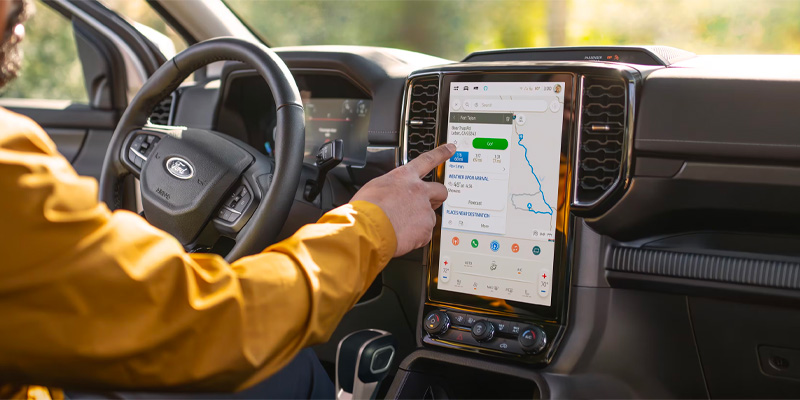
In today’s tech-driven world, staying connected on the road has never been easier, thanks to the integration of Apple CarPlay® and Android Auto® in Ford vehicles. These features enhance your driving experience by allowing seamless access to your smartphone’s apps, navigation, music, and messages directly through your vehicle’s SYNC® system. Below, we’ll walk you through how to connect and use Apple CarPlay® and Android Auto® in your Ford for a smooth, hands-free experience.
Connecting Apple CarPlay® to Your Ford
Apple CarPlay® is designed to bring the best features of your iPhone into your Ford vehicle’s infotainment system. Here’s how you can get started:
Step-by-Step Guide:
- Ensure Compatibility: Make sure your Ford vehicle supports Apple CarPlay® (most models from 2016 onward include this feature).
- Use a USB Cable: To connect your iPhone, plug it into your vehicle’s USB port using a certified Lightning-to-USB cable.
- Activate Apple CarPlay®: Once your phone is connected, the SYNC® system should automatically prompt you to allow access to Apple CarPlay®. Tap “Allow” on your iPhone.
- Start Using: Once connected, you’ll see the Apple CarPlay® interface on the screen, featuring icons for apps like Maps, Music, Messages, and Phone. You can control these through voice commands or the SYNC® touchscreen.
Apple CarPlay® Features:
- Navigation: Use Apple Maps or third-party apps like Google Maps or Waze for turn-by-turn directions.
- Communication: Make and receive calls, send messages, and listen to notifications hands-free.
- Entertainment: Stream music, podcasts, and audiobooks from Apple Music, Spotify, or other supported apps.
Connecting Android Auto® to Your Ford
Android Auto® offers similar features for Android users, making it just as easy to integrate your smartphone into your Ford’s system. Here’s how to get Android Auto® up and running:
Step-by-Step Guide:
- Ensure Compatibility: Verify that your Ford vehicle is equipped with Android Auto® (available on most Ford models from 2017 onward).
- Use a USB Cable: Connect your Android smartphone to the USB port in your Ford using a high-quality USB cable.
- Launch Android Auto®: Once connected, the SYNC® system will prompt you to accept the connection. Follow the on-screen instructions on both your phone and the Ford SYNC® display.
- Ready to Use: The Android Auto® interface will appear on your vehicle’s screen, allowing you to control your apps, navigation, and music hands-free.
Android Auto® Features:
- Navigation: Access Google Maps or Waze for real-time traffic updates and navigation.
- Communication: Send and receive text messages via voice command, and take calls hands-free.
- Entertainment: Enjoy your favorite playlists, podcasts, and audiobooks with apps like Spotify, Pandora, or Audible.
Apple CarPlay® and Android Auto® are powerful tools that make driving safer, more enjoyable, and more convenient. By following the simple steps outlined above, you can quickly connect your smartphone to your Ford vehicle and begin enjoying all the benefits of these cutting-edge technologies. Whether you’re navigating to your next destination, staying in touch with friends, or enjoying your favorite tunes, Apple CarPlay® and Android Auto® have you covered. Visit Courtesy Ford of Globe, in Globe, AZ for extra assistance or questions!


